Showing posts with label po. Show all posts

Overview of the Procure-To-Pay process flow in Oracle Fusion Applications

What is the Procure-to-Pay process flow?


The Procure-to-Pay process flow Involves two modules, the Procurement and the Payables Modules. In a quick summary, this process flow involves capturing the demand of a product/service, facilitating quotations from suppliers, converting quotations into purchase orders, receiving material, and finally releasing the payment for the vendor.


The process begins with demand, and the demand is recorded in the form of a requisition. The requisition is utilized as a base for requesting supplier quotations. Supplier quotations then get entered and compared within the application. Based on analysis and best product and price choice, the organization will award a purchase order to the chosen supplier. The supplier will then ship and send the material (or provide the service) to the organization, and finally the organization will book the invoice to pay the supplier. Do note that the sourcing of quotations is not a mandatory step in the process.

What is Procurement?

Procurement, or sometimes referred to as Purchasing, refers to a business practice of attempting to acquire goods and/or services to accomplish the goals of its enterprise. It is simply the process of identifying what the organization needs and buying it. The Procurement Modules' main end-users are called "Buyers".

Key Terminologies in Procurement

Purchase Requisition
  • Purchase Request is a precise document generated by an internal or external organization to notify the purchasing department of items it needs to order, their quantity, and the time frame that will be given in the future.
  • Executed by the End-Users of Each Department and sent to the Purchasing department.
Quotation
  • Request For Quotation (RFQ) is the communication between customer and supplier asking the availability of the item and its corresponding price.
  • Executed by Buyers to be sent to Vendors
Purchase Order
  • A written authorization from a buyer, for a supplier to deliver specified goods or services to the buyer, at the price, quality level, delivery date, and certain other terms specified in the agreement. A purchase order is legally binding after the supplier counter-signs it.
  • Executed by the Buyers and sent to the selling Vendor
What is Payables?

The Payables Application, sometimes referred to as the AP Module, is the module that is primarily involved with interfacing with Suppliers and paying Suppliers. Apart from the Procurement module, the AP module interfaces with multiple applications such as applications such as the Payments application for fund disbursement, Cash Management for bank statement reconciliation.

Key Terminologies in Payables

Suppliers
  • Organizations or Entities that provide goods or services. Can be both Internal or External.
Payment Disbursement
  • Provides funds for delivered goods or services to suppliers.
  • Can also provide funds for Customer Refunds or Employee expense reimbursements in the form of a Payment Request
  • Can be in the form of sending a physical check or electronic funds transfer (EFT)
Assets
  • Acquired Physical Goods that have a direct impact to an organization's net worth such as buildings, furniture, computers, etc.
  • Can be entered into the Payables module and will flow down to the Assets Module.
  • Value can Depreciate/Appreciate over a period time, and can be decommissioned as well.
For more full-detailed Tutorials and Tips, check out #TheOracleProdigy at https://lifeofanoracleprodigy.blogspot.com/
Follow The Oracle Prodigy on Facebook (https://www.facebook.com/theOracleProdigy/) and Twitter (https://twitter.com/D_OracleProdigy)

Create a Supplier in Oracle Fusion Applications

To Create a Supplier, the User must first be granted the seeded role of "Supplier Manager". Navigate to the Security Console from the Navigator:


Click on the "User" tab and search for your desired user to grant the role to:


Click on "Edit" and proceed to click on the "Add Role" button:


Select "Supplier Manager" from the List of Values (LoV). If there is another role with a similar name, choose the Role with the Code of "ORA_" as the prefix. This signifies that it's the seeded Oracle role.


Once done, click on the "Add Role Membership" button and Save. You may need to logout and log back in after a few minutes for it to take effect to the desired user.

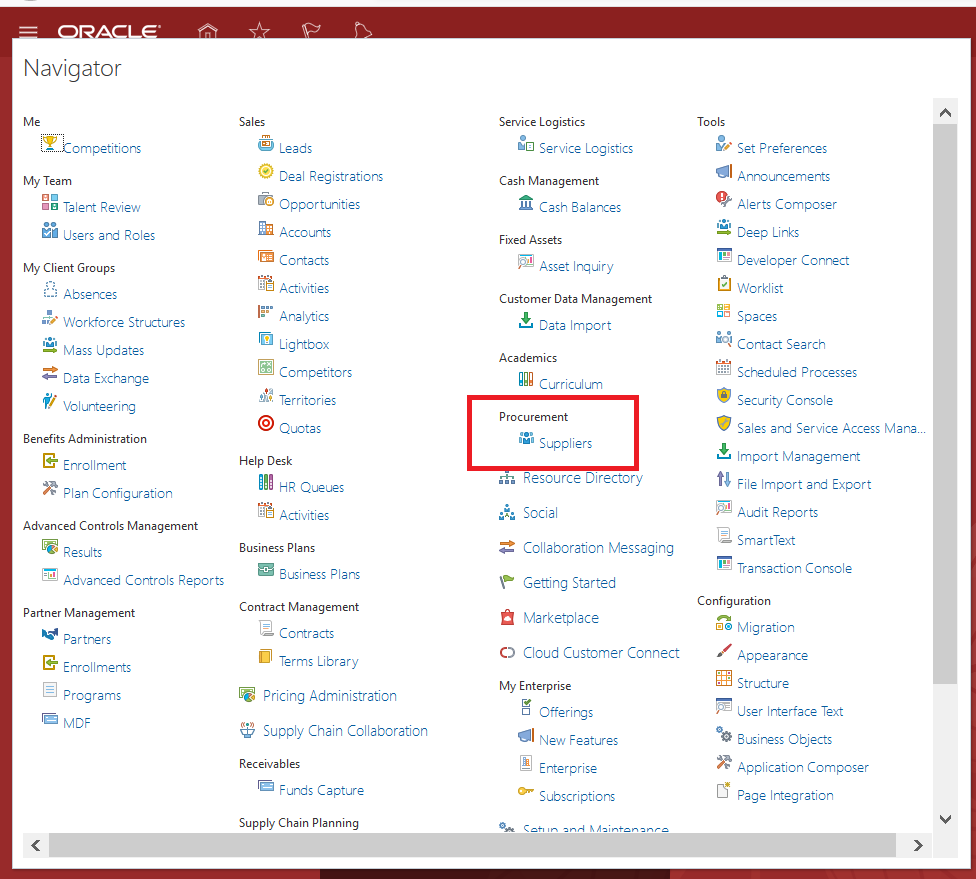
Click on the Navigator and select "Suppliers". Alternatively, you may click on the "Procurement" Menu on the Welcome Springboard and proceed to click on "Suppliers".


Click on the Task Pane and select "Create Supplier". Fill up the initial required details and click on "Create":


Once done, The initial details of the Supplier will be created. Please take note that you would still need to complete other important details before you can proceed to use the newly-created Supplier. You can view the details still pending for the Supplier by viewing the "Suppliers with Incomplete Setup" section in the Supplier screen:


A quick step-by-step Video demonstration can be found here:


Set Procurement Agents in Oracle Fusion Applications


Go to Setup and Maintenance > Choose the "Financials" offering and select "Manage Procurement Agents" under the Tasks.


Select the desired Business Unit the Agent will come under:


On the Manage Procurement Agents page, you may either search for an existing agent by filling up the required fields and clicking on the "Search" button, or you may click on the "+" sign to add a new agent:

In the "Create Procurement Agent" page fill up the Required fields and identify if that specific agent needs access to other Agents' Documents as well.

Click on "Save and Close" and you may verify if the Agent has been created from the "Manage Procurement Agent" page:


Changing the Purchase Order Layout in Oracle Fusion Applications

Often times there is a requirement to change the Purchase Order PDF report during implementation to add a company's logo or branding, or add or remove information from the layout itself.

Below are the steps for you to modify a Purchase Order Report:
  1. Upload a custom Purchase Order Template to BI Publisher. (see the link for the steps)
  2. Navigate to Setup and Maintenance
  3. Click on the Task Pane then click on Search


  1. Search for the Task "Configure Procurement Business Function"
  2. Select a Business Unit
  3. Click on the "Document Types" Tab and choose "Purchase Order"
  1. In the Document Type Details, select the desired Purchase Order layout.
  2. Click on Save and Close
  3. Test the new Purchase Order Layout by going to the Procurement menu > Purchase Orders, then click on the Task Pane and Select "Manage Orders"
  4. Select a Purchase Order and then "View PDF"


For more information, you may check out the Oracle Documentation on BI Reports Customization

Recent Posts

SQL Fundamentals

Introduction to SQL and Syntax What is SQL? SQL stands for Structured Query Language. is a standard programming language for accessing datab...

Top Posts