Showing posts with label ap. Show all posts

Overview of Subledger Accounting in Oracle Fusion Applications

This article will show an Overview of Subledger Accounting in Oracle Fusion Applications.

What is Subledger Accounting?

Subledger Accounting (SLA) is an Engine that transforms Subledger transactions into Journal Entries in General Ledger. It caters to seeded Subledgers such as Receivables and Payables, and also to Custom Subledgers created by Accounting Hub.

How does Subledger Accounting Work?

Below illustrates the whole process flow from the Subledgers to General ledger:


The transactions from the Fusion Subledgers applications (such as the AR, AP, Cash Management, Projects, Assets Modules) and Custom Subledgers will get processed by running the Create Accounting process. 

The Create Accounting process creates the journals in the Subledger Journal Tables by looking at the Accounting rules that are embedded into the Accounting Method. 

Once reviewed and ready, SLA transfers them to the GL interface and from there the import process kicks in and creates the Journals in the General Ledger. These GL journals are usually summarized and normally, the relationship between the Subledger Journal and the GL Journal is many to one. Inside the General Ledger, you have to run the posting process. The posting process makes those journals official and sends information to the Essbase balances cube. 

Essbase is a multidimensional database created by Oracle Hyperion that uses that integrates with Fusion GL.  It is a reporting product used for analytics, generating financial reports, etc. Along with Essbase, there are other reporting tools such as Smart View and Financial Reporting Studio to generate financial reports, balance sheet reports, et cetera.

What are Accounting Methods?

Accounting methods (sometimes called Accounting Conventions) group the subledger-generated rule sets together to define a consistent accounting convention across all accounting event classes and accounting event types that are part of one or more source systems. An accounting method is basically attached to the primary or secondary ledger. 

In different countries, different conventions are being followed. For example in US, they follow US GAAP. In some countries, they are following IFRS. And in some countries, they have their local GAAP requirements. You can use the convention to design the rules to comply with the respective country-related GAAP requirements.

Components of Accounting Methods

The accounting method primarily includes elements such as journal entry rule sets, journal line rules and account rules. Optional elements are description rules and supporting references, which can also be utilized for reconciliation purposes. Now to set up the journal line rules, account rules, description rules, et cetera, we can also utilize some other additional options, including conditions, mapping sets, custom formulas, and so on.


Follow The Oracle Prodigy on Facebook (https://www.facebook.com/theOracleProdigy/) and Twitter (https://twitter.com/D_OracleProdigy)

Creating an Expense Report in Oracle Fusion Applications

This article will show you how to create Expense Reports in Oracle Fusion Applications. From the Navigator, click on the "Expenses" selection on the "About Me" section (or the "Me" section, depending on your Springboard layout):


If you haven't created an Expense report yet, you will be shown the Expenses Product Tour on the page, in which you can watch a quick video to learn more about the Expenses Module. To proceed to create an Expense Report, click on the "Create Expense Report" function:


On the "Create Expense Report" page, initially fill up the "Purpose" field and select the Payment Method and click on save for the application to generate its internal Expense Report Number:


As shown below, the Expense Report was assigned its internal number and is already in "Saved" status. To add the itemized expenses, click on the "+" icon:


On the Expense Item page, choose the appropriate expense type (i.e. Dinner, Hotel, etc.) and the correct amount and date. Put in the number of days the certain Expense was used as it will be divided from the total expense amount:


Depending on your organization's policies, your Expenses might need to be itemized and more detailed. Click on the "Itemize" button to add each line to the total expense. Tick the "Personal" checkbox if the expense was a personal expense and shouldn't be reimbursed. Once done, click on the "Save" drop down next to the "Close" button and proceed to close.


You can attach the necessary images of receipts on the "Create Expense Item" screen by clicking on the "+" icon or tick the "Receipt Missing" checkbox. This may be necessary for approval, depending on the Approving Manager or your organization's policies:


Make sure you tick the checkbox that signifies that you've read and accept the organization's Travel and Expense policies or else you won't be able to submit the expense report for approval. 


The report will undergo approval and once approved, will become a Payment Request in Payables to be processed. Depending on the Payment Method, the amount will be reimbursed to the employee via a Physical Check, Electronic (needs to have a Bank Account setup at the Employee-Level) or Wire. To know the approval stage of the Expense report, go to the Expense Report and click on the Status:


Below is a Video Demonstration of Creating an Expense Report in Oracle Fusion Applications:


Follow my other Social Media Accounts!
Facebook Page: https://www.facebook.com/theOracleProdigy/
Twitter: https://twitter.com/D_OracleProdigy

Overview of Oracle Financials

Below is a quick diagram of the Oracle Financials Cloud Modules and how they all interact with each other. Note that most of these modules are also found in Oracle E-Business Suite.


Below summarizes some of the important modules in Oracle Financials:

General Ledger (usually abbreviated to GL)
  • The Financial application that records all the finalized transactions of an organization
  • Deals with Ledgers, Periods, Currencies, Accounting Convention (sometimes called SubLedger Accounting Method) and finalized financial reporting

SubLedger Accounting (usually called SLA)
  • A subset application of the General Ledger that holds all the finalized transactions of the other modules (somewhat like an interface).
  • Transferring data from Subledgers to the General Ledger can be done on the Balances, Journal and Subledger Level (Lowest to Highest, respectively)
  • More information on a separate article: Overview of Subledger Accounting in Oracle Fusion Applications
Payables (sometimes called Accounts Payables or AP)
  • The Financial application that deals with Suppliers and Payments
  • Also linked to the Procurement Module via Purchase Orders and Requisitions
  • Invoices can be automatically created once a Supplier has delivered the ordered goods and the organization has confirmed it.
  • The Payment process can then be initiated and electronically transmitted to the Bank for Processing.
  • Run Create Accounting to Transfer to SubLedger Accounting (SLA)
Expenses
  • A subset application of Payables that deals with employee expense reimbursement such as Travel, Food, Accomodation, etc.
  • Expenses Can be entered via Spreadsheets, Mobile Application and usually goes through an approval process
  • Once approved, the expense will become a Payment Request in Payables for Reimbursement to be paid to the Employee
  • Follows the same process of "Create Accounting" through Payables
Assets (sometimes called Fixed Assets in EBS)
  • The Financial application that deals with Company Assets and how their value fluctuates over time.
  • Can be linked to Payables when an organization orders goods that are tagged as an Asset.
  • Assets can then be posted into the "Asset Book" and starts the Asset life cycle (Appreciation, Depreciation, Transfer, Adjustments, Retire, etc.).
  • Run Create Accounting to Transfer to SubLedger Accounting (SLA)
Receivables (sometimes called Accounts Receivables or AR)
  • The Financial application that creates and sends Invoices to Customers (can be created Manually or interfaced via AutoInvoice from Projects, third-party applications, etc.)
  • Receipts are then issued once customers have paid the Invoices
  • Run Create Accounting to Transfer to SubLedger Accounting (SLA)
Advanced Collections
  • A subset application of receivables that deals with customer payment collection.
  • Collectors can review delinquent, non-paying Customers and issue a reminder in the form of Dunning.
  • Customers can then issue a Promise to Pay letter or raise a Dispute on payments.
  • Every action a collector and customer is recorded in the application and can automatically raise flags/reminders when thresholds are not met.
Cash Management (usually abbreviated to CM)
  • Reconcile Bank Statements to and from the Bank and link up to transactions within the application such as receipts
  • Includes Miscellaneous Transactions such as Bank Interest and charges
  • Cash Forecast and Positions
  • Transactions such as External Transactions (Bank Charges or Interest Income) and Bank Account Transfers initiated from the Cash Management application goes into SubLedger Accounting
Tax (called E-Business Tax in EBS)
  • Module responsible for the Calculation for Tax for both AR and AP
  • Can be automatically linked to third-party tax providers such as Vertex
  • Defines the Tax Regimes, Rates and Tax Recovery Rates, depending on the geographical area

For more full-detailed Tutorials and Tips, check out #TheOracleProdigy at https://lifeofanoracleprodigy.blogspot.com/
Follow The Oracle Prodigy on Facebook (https://www.facebook.com/theOracleProdigy/) and Twitter (https://twitter.com/D_OracleProdigy)

Create a Supplier in Oracle Fusion Applications

To Create a Supplier, the User must first be granted the seeded role of "Supplier Manager". Navigate to the Security Console from the Navigator:


Click on the "User" tab and search for your desired user to grant the role to:


Click on "Edit" and proceed to click on the "Add Role" button:


Select "Supplier Manager" from the List of Values (LoV). If there is another role with a similar name, choose the Role with the Code of "ORA_" as the prefix. This signifies that it's the seeded Oracle role.


Once done, click on the "Add Role Membership" button and Save. You may need to logout and log back in after a few minutes for it to take effect to the desired user.

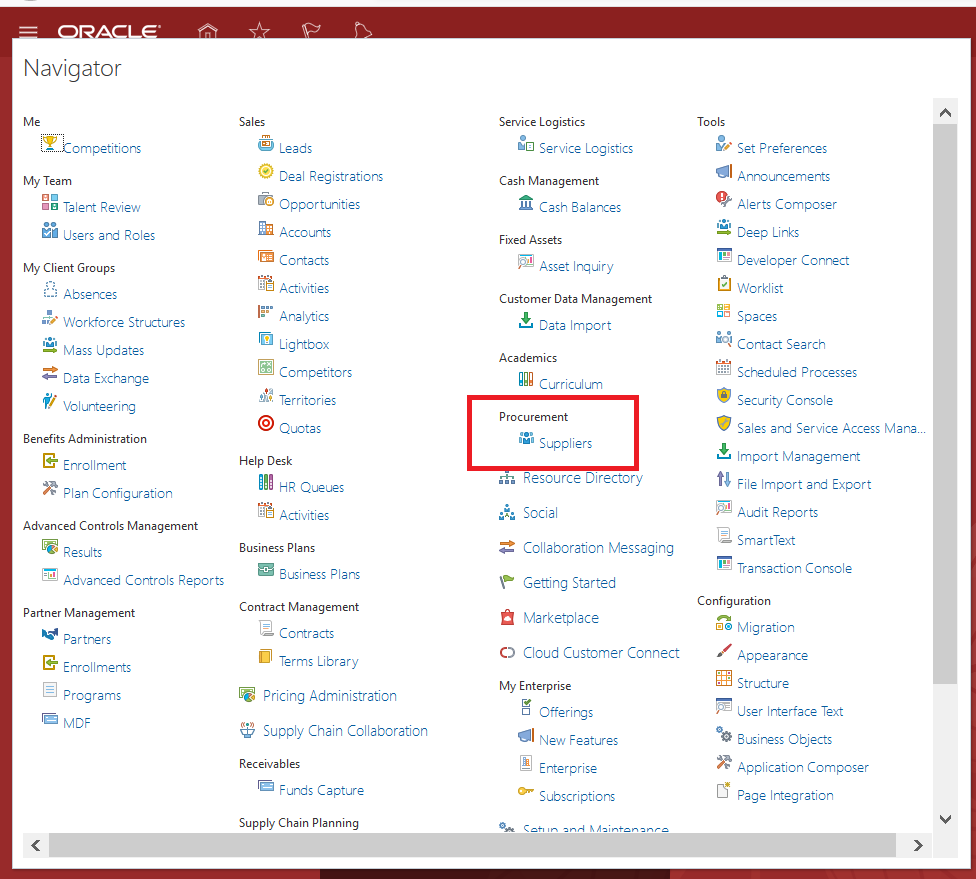
Click on the Navigator and select "Suppliers". Alternatively, you may click on the "Procurement" Menu on the Welcome Springboard and proceed to click on "Suppliers".


Click on the Task Pane and select "Create Supplier". Fill up the initial required details and click on "Create":


Once done, The initial details of the Supplier will be created. Please take note that you would still need to complete other important details before you can proceed to use the newly-created Supplier. You can view the details still pending for the Supplier by viewing the "Suppliers with Incomplete Setup" section in the Supplier screen:


A quick step-by-step Video demonstration can be found here:


Set Procurement Agents in Oracle Fusion Applications


Go to Setup and Maintenance > Choose the "Financials" offering and select "Manage Procurement Agents" under the Tasks.


Select the desired Business Unit the Agent will come under:


On the Manage Procurement Agents page, you may either search for an existing agent by filling up the required fields and clicking on the "Search" button, or you may click on the "+" sign to add a new agent:

In the "Create Procurement Agent" page fill up the Required fields and identify if that specific agent needs access to other Agents' Documents as well.

Click on "Save and Close" and you may verify if the Agent has been created from the "Manage Procurement Agent" page:


Recent Posts

SQL Fundamentals

Introduction to SQL and Syntax What is SQL? SQL stands for Structured Query Language. is a standard programming language for accessing datab...

Top Posts